


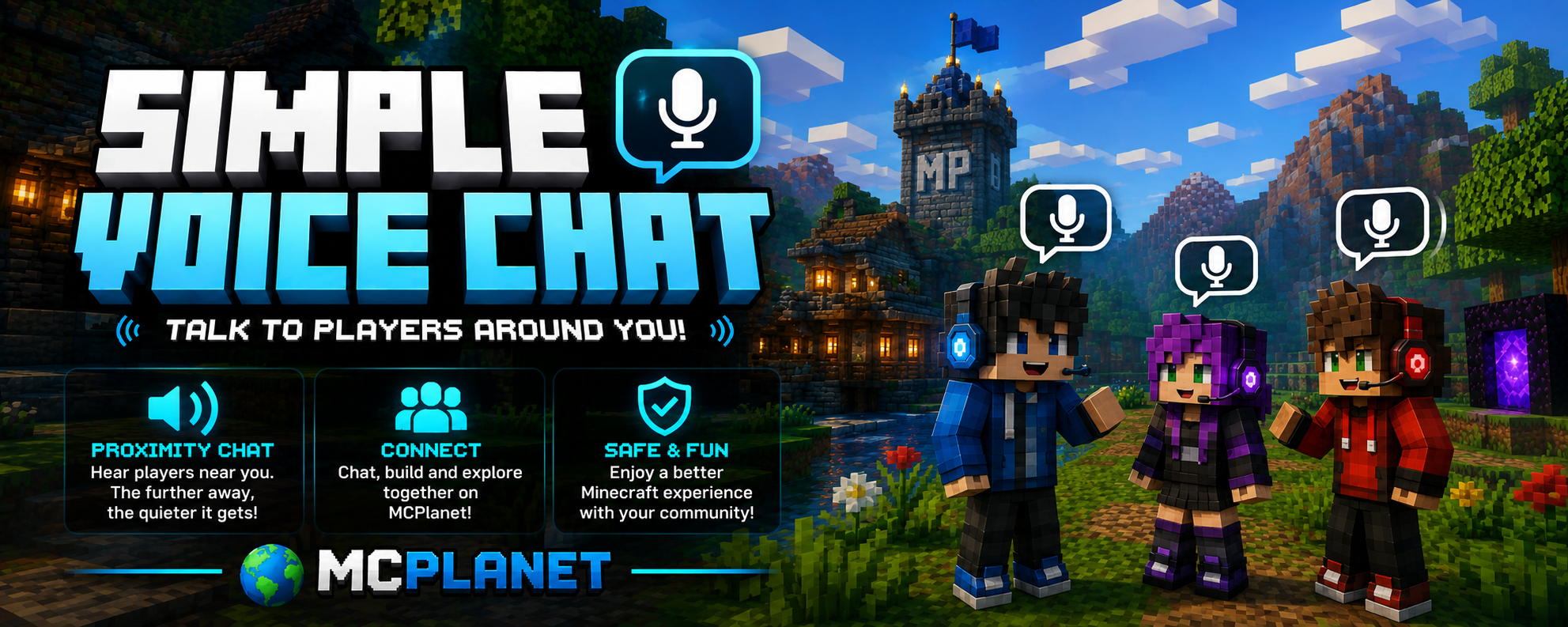
🎙️ Simple Voice Chat
Talk to players around you!
Minecraft Planet has proximity voice chat powered by Simple Voice Chat.
With Simple Voice Chat installed, you can talk to players nearby using your microphone — no Discord required!
Voice chat works based on distance, so players further away will become quieter or eventually unable to hear you. Perfect for chatting while exploring, working on builds or hanging out with other players.
🛠️ How to Install Simple Voice Chat
Simple Voice Chat requires Minecraft Java Edition and Fabric.
Don't worry if you've never installed a Minecraft mod before — it only takes a few minutes.
1. Install Fabric
First, download the Fabric Installer for Windows.
Once downloaded:
-
Close Minecraft and the Minecraft Launcher.
-
Open the Fabric Installer.
-
Select Client.
-
Select Minecraft Version: 26.2.
-
Make sure Create Profile is enabled.
-
Click Install.
Fabric will create a new profile in your Minecraft Launcher.
2. Download Simple Voice Chat
Next, download the Fabric version of Simple Voice Chat for Minecraft 26.2.
👉 Download Simple Voice Chat – Fabric 26.2
Make sure you download the Fabric version that matches Minecraft 26.2.
The Simple Voice Chat release for Fabric 26.2 supports both client and server environments.
3. Install the Voice Chat Mod
Once the .jar file has downloaded, you need to put it into your Minecraft mods folder.
On Windows, press:
Windows Key + R
Then enter:
%appdata%\.minecraft\mods
Press Enter.
Move the downloaded Simple Voice Chat .jar file into this folder.
Your folder should look something like:
.minecraft
└── mods
    └── voicechat-fabric-2.6.21+26.2.jar
Do not extract or unzip the .jar file.
Fabric's official documentation confirms that .jar mod files should simply be placed in the .minecraft\mods folder.
🎮 4. Start Minecraft
Open the Minecraft Launcher.
In the version/profile selector, choose:
Fabric Loader 26.2
Then click Play.
Once Minecraft has loaded, connect to:
🌍 Minecraft Planet
The Simple Voice Chat mod will automatically connect to the server's voice chat system.
🎤 5. Set Up Your Microphone
Once you're in-game, press:
V
This opens the Simple Voice Chat menu.
From here you can configure:
-
🎙️ Microphone
-
🔊 Speakers/headset
-
🗣️ Voice activation
-
🎧 Microphone volume
-
🔈 Voice chat volume
-
⌨️ Push-to-talk key
We recommend using Push to Talk if you're playing with other people nearby.
🗣️ How Proximity Voice Chat Works
Simple Voice Chat uses proximity chat, meaning you can only hear players who are close enough to you.
For example:
Player next to you
🗣️ 🔊 Loud and clear
Player further away
🗣️ 🔉 Quieter
Player too far away
🔇 Can't hear them
This means you can have conversations naturally while exploring the server.
❓ Voice Chat Isn't Working?
If you don't see the voice chat icon or can't hear anyone, check the following:
✅ Make sure you're using Fabric
You must launch Minecraft using the Fabric 26.2 profile.
✅ Check your mods folder
Make sure Simple Voice Chat is inside:
%appdata%\.minecraft\mods
✅ Check your microphone
Press V in-game and make sure the correct microphone is selected.
✅ Check your Windows microphone
Make sure Minecraft has permission to access your microphone and that your headset/microphone is selected as the Windows input device.
✅ Make sure you're using the correct Minecraft version
Minecraft Planet currently uses Minecraft Java Edition 26.2, so your Fabric installation and Simple Voice Chat mod need to match that version.
🎙️ That's It!
Once you're installed, all you need to do is:
Install Fabric → Install Simple Voice Chat → Launch Fabric → Join Minecraft Planet → Press V
Then you're ready to talk!
🌍 See you on Minecraft Planet!
Build together. Explore together. Talk together.